Dec 5, 2025
Vitual Plant Care Companion
Project Overview
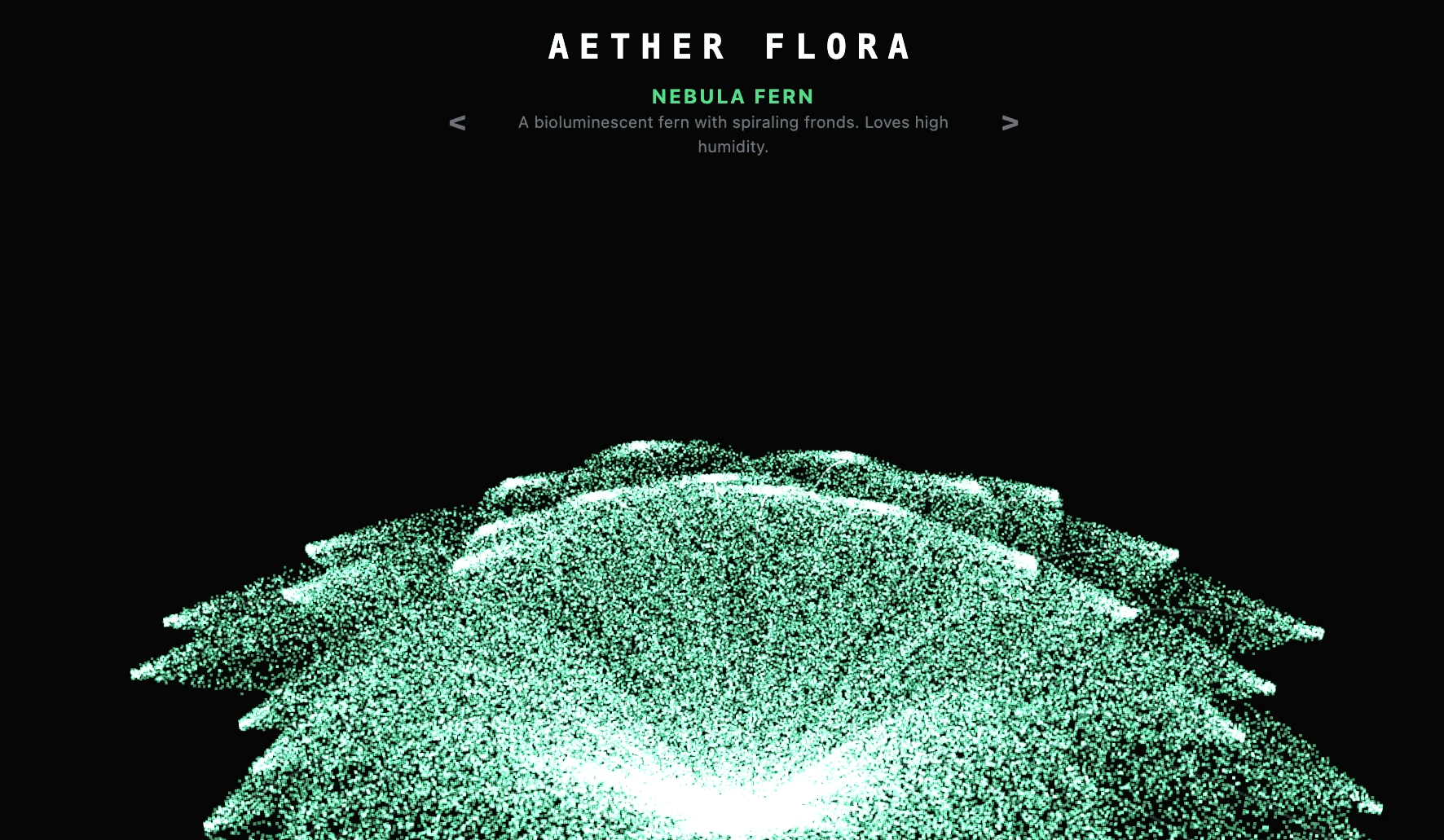
Virtual Plant Care Companion is an interactive installation that teaches plant care through gesture-based interaction with AI-powered virtual plants. Inspired by my mother's enthusiasm for plant care videos, I wanted to create a hands-on learning environment where mistakes are safe and feedback is immediate. Users interact with six different plant species—roses, snake plants, ferns, monsteras, basil, and oak saplings—each with unique care requirements. Through hand gestures captured by a webcam, users water plants, provide sunlight, and perform care actions while the plants respond in real-time through particle effects and AI-generated feedback.
Visual Reference
Projection mapping installations (like teamLab's interactive gardens)
Plant care apps and visual guides
Hand gesture interaction systems
Time-lapse videos of plant growth and decay
Interaction Design
Visual meters display water and sunlight levels, showing ideal ranges unique to each species. When users complete their daily care, they press "Sleep" to advance time. The system calculates overnight consequences based on how well the care matched the plant's needs—perfect care increases health and growth, while neglect causes wilting and decline. The Gemini AI provides morning updates in the plant's voice, explaining what went well or poorly and offering specific advice.
Gesture Controls
Right hand raised: Waters the plant
Left hand raised: Provides sunlight
Hands waving side-to-side: Performs weeding
Process
Machine Learning Model
I used MediaPipe Hands for real-time hand tracking, accessed through TensorFlow.js. This model provides twenty-one skeletal keypoints per hand, enabling both static pose detection (handedness) and dynamic gesture recognition (movement velocity). I chose MediaPipe for its balance of accuracy and browser-based performance—it runs entirely client-side without requiring server infrastructure.
Research & Design Foundation
I began by researching real plant care requirements for each species I wanted to include:
Roses: Abundant sunlight and moderate water
Snake plants: Nearly indestructible with low water needs
Ferns: Thrive in shade and high humidity
Monsteras: Prefer indirect light
Basil: Love moisture and warmth
Oak saplings: Resilient but slow-growing
I searched online for reference images of each plant's visual characteristics—the crimson petals of roses, the sword-like leaves of snake plants, the delicate fronds of ferns—to inform my particle system design.
Early Exploration: 3D Models
Initially, I uploaded plant photos to Tripo.ai, an AI-powered 3D generation tool, which produced mesh models from the 2D images. This gave me structured geometry to work with, but I quickly encountered limitations. The generated models, while visually interesting, felt too static and didn't convey the organic, living quality I wanted. I needed something that could subtly animate to show health states and respond fluidly to user interaction.
Platform Comparison: TouchDesigner vs. Three.js
TouchDesigner
TouchDesigner initially seemed ideal because of its powerful particle systems and real-time visual programming environment. I could create complex, beautiful effects quickly through node-based workflows. However, I encountered several critical limitations:
Difficult to deploy as web experiences (requires local installation or complex streaming)
Cumbersome integration with webcam ML models and external APIs
Limited portability for exhibition settings
Three.js (Final Choice)
I shifted to Three.js, a JavaScript 3D library accessed through React Three Fiber. This decision was driven by several key advantages:
Web deployment: The entire experience runs in a browser with no installation required
Mature ecosystem: JavaScript provides robust libraries for MediaPipe integration and API communication
Clean architecture: React's state management separates gesture detection, plant logic, rendering, and AI communication into discrete modules
Performance control: Fine-grained optimization of particle counts and animation loops
While Three.js required more manual coding than TouchDesigner's visual interface, it gave me the flexibility and control I needed for a production-ready installation.
Building the Particle System
The particle system became the heart of the visual experience. Each species has defined parameters:
Particle count: 200-400 depending on species
Trunk color: Browns and dark greens
Foliage color: Species-specific hues
Scale multiplier: Visual variety
The system distributes particles in two zones: a dense cylindrical trunk and a spherical or hemispherical canopy. I used Perlin noise to create organic drift, with each particle following its own phase-offset path that never repeats. Particle colors interpolate between vibrant greens when healthy and dull browns when dying.
Designing the Game Mechanics
The game mechanics evolved through iteration. Early versions used real-time plant degradation, with health continuously declining during interaction. This created stress and punished exploration, the opposite of my educational goals. I restructured the experience around a day-night cycle:
During the "day": Users freely provide care, watching meters fill without immediate consequences
Press "Sleep": System evaluates yesterday's care holistically
Morning feedback: Health changes based on how well care matched plant's ideal ranges
Each plant species has ideal water and sun values plus tolerance ranges. If care falls within tolerance, health increases; deviations cause proportional penalties. This delayed feedback encourages experimentation and helps users understand cause and effect without punishment for momentary mistakes.
Final Integration in Google AI Studio
The final integration happened in Google AI Studio, which provided a unified development environment for testing the Gemini API alongside the React application. AI Studio's preview mode let me rapidly iterate on prompts and UI components simultaneously. I added several finishing touches:
Time-aware UI: Day counter and growth stage indicators
Weather visualization: Aesthetic elements suggesting passage of time and changing conditions
Species selector: Navigation between different plants with visual transitions
These additions created narrative momentum, transforming isolated care actions into an unfolding story of cultivation.
Technical Stack
Frontend: React + TypeScript + Vite
3D Rendering: Three.js via React Three Fiber
Hand Tracking: MediaPipe Hands (TensorFlow.js)
AI Integration: Google Gemini API
Deployment: Netlify
Next Steps
With more time, I would pursue several expansions:
Deeper plant behaviors: Introduce pests, diseases, and seasonal variations that change care requirements over time
Progression system: Users unlock complex species (orchids, carnivorous plants) by successfully caring for simpler ones
Multiplayer collaboration: Multiple users tend a shared garden, requiring communication and coordination
Physical installation enhancements: Projection mapping onto three-dimensional forms and spatial audio feedback for immersive experience
Companion mobile app: Photograph real plants and receive AI-powered care recommendations, extending learning beyond the installation
Reflection
Virtual Plant Care Companion demonstrates how gesture recognition, procedural visuals, and conversational AI can create empathetic educational experiences. By making plant care accessible, forgiving, and beautiful, the project offers a bridge between digital interaction and natural processes—a way to cultivate both virtual gardens and real understanding.
Demo
🔗 Live Demo (Coming soon)
Installation
Credits
Created by: Lynn (Manling Yang)
Program: NYU IMA - ML for Art
Year: 2025
License
MIT License
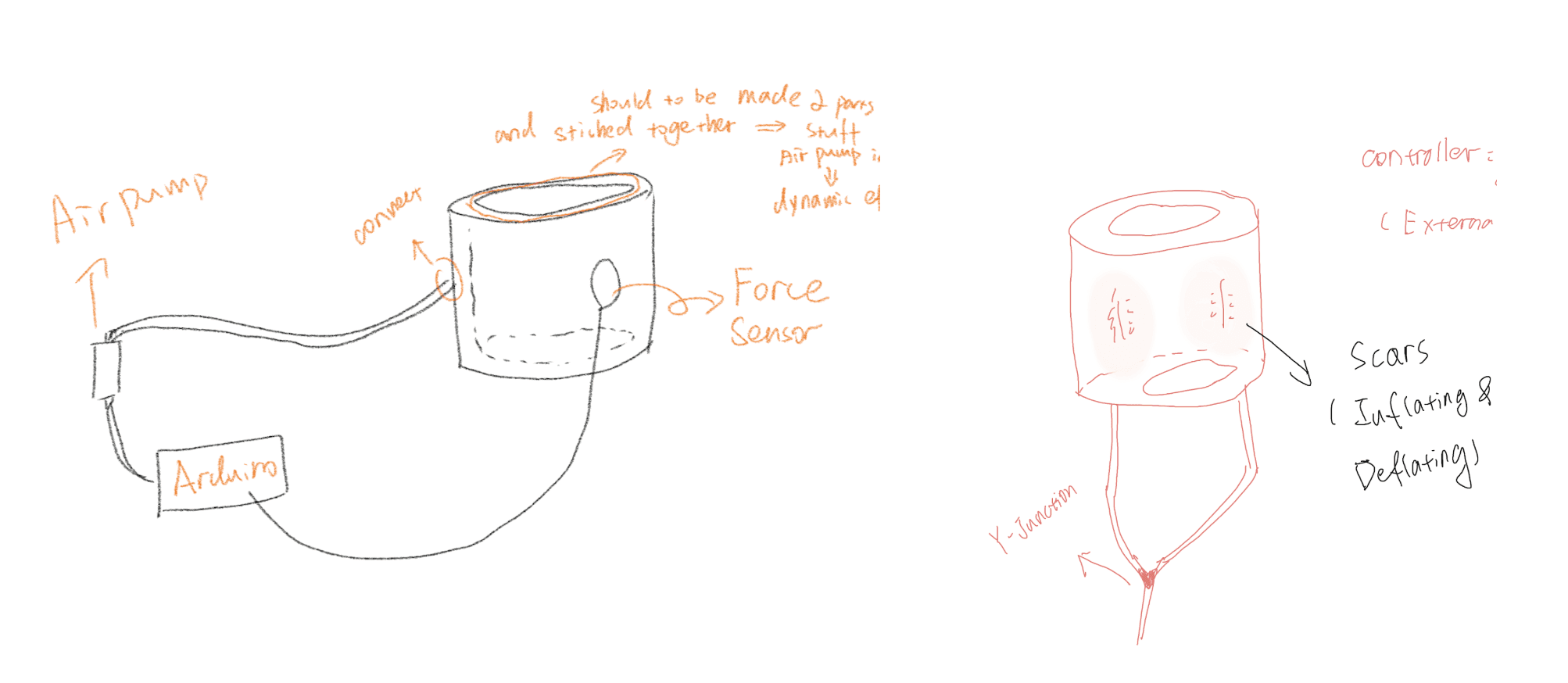
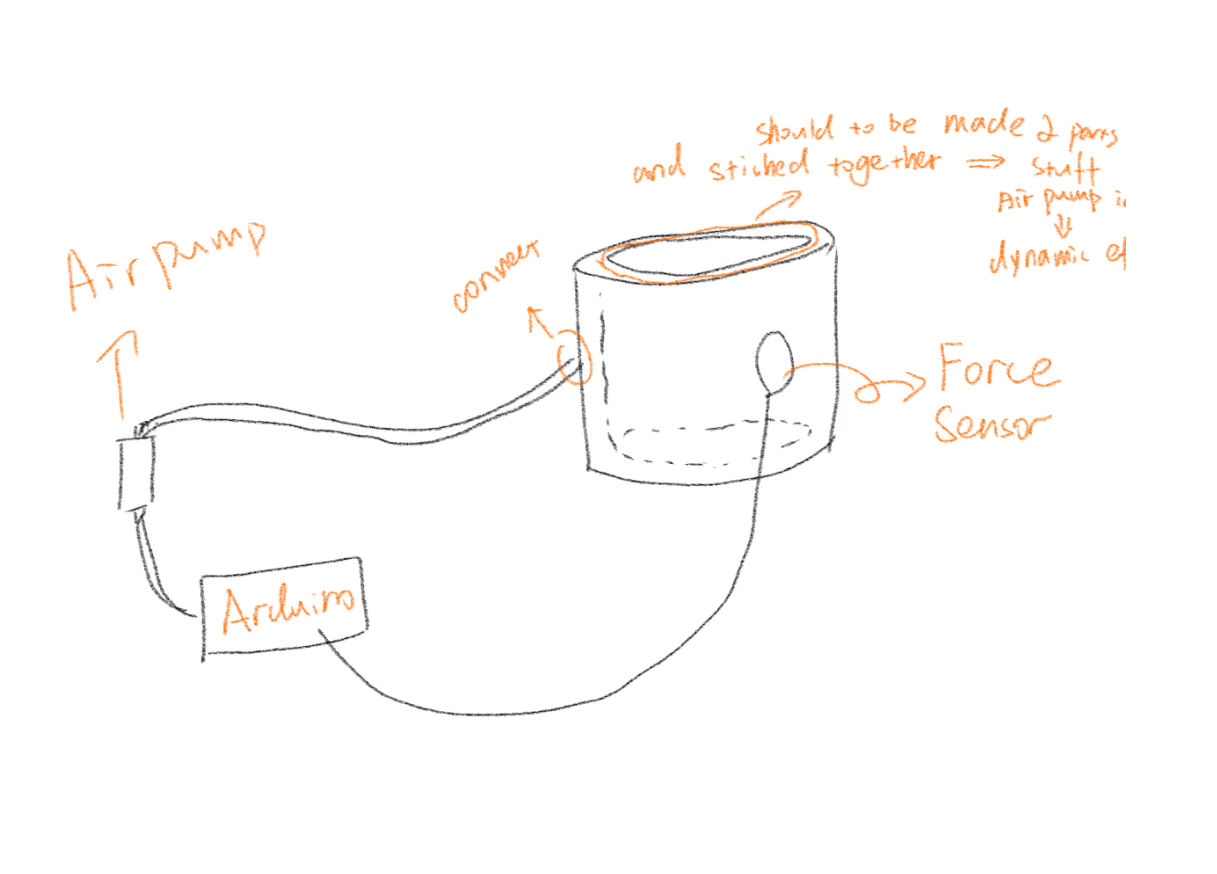
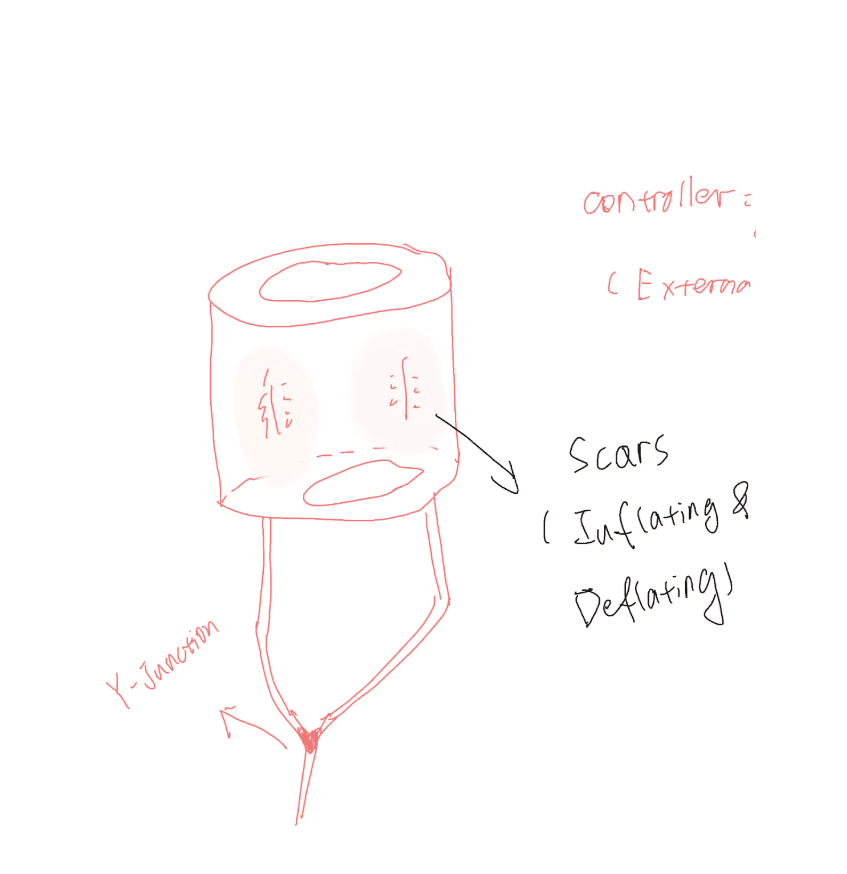
Initial & Final Sketches
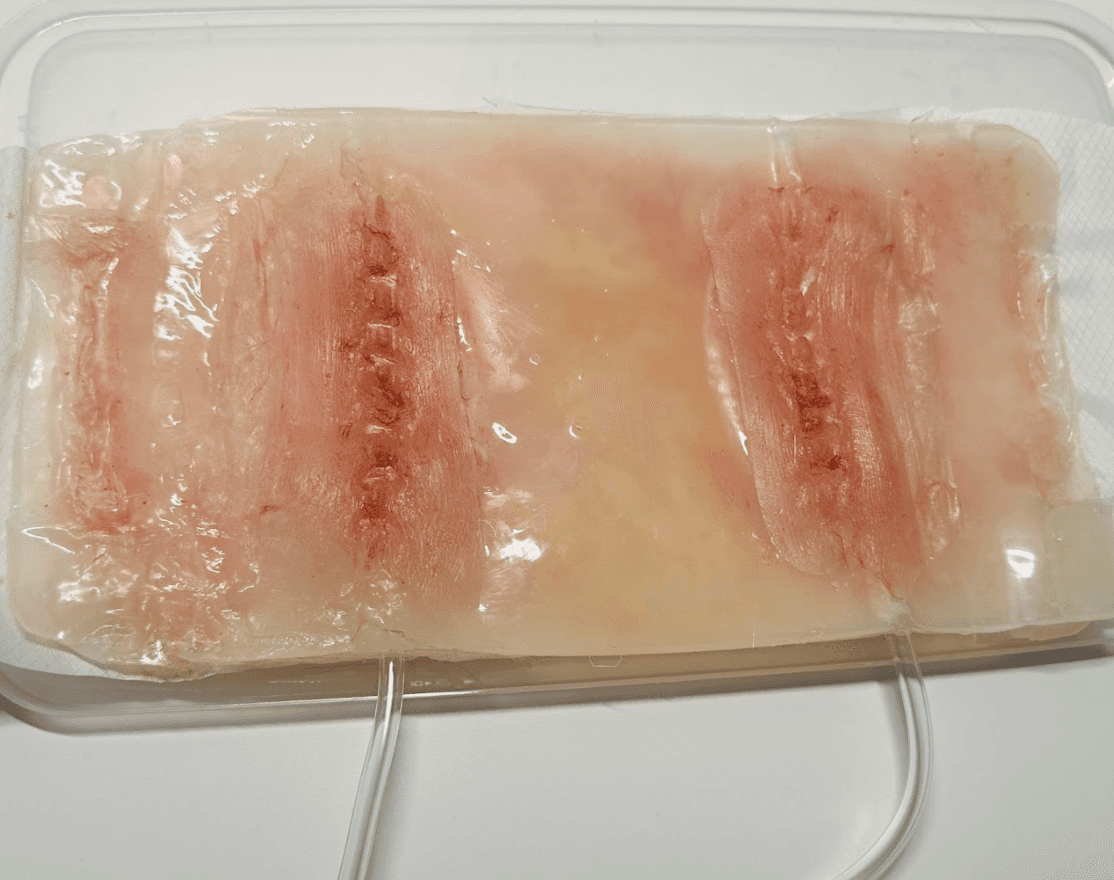
Finished Product
How to operate the air pump and achieve the effect of inflation?
After successfully laminating the final product, I began dyeing (I tried adding the dyeing material when mixing the solution but was unable to achieve the effect I wanted, so I finally chose to paint the finished product with a brush).
Process of Creating Project Model
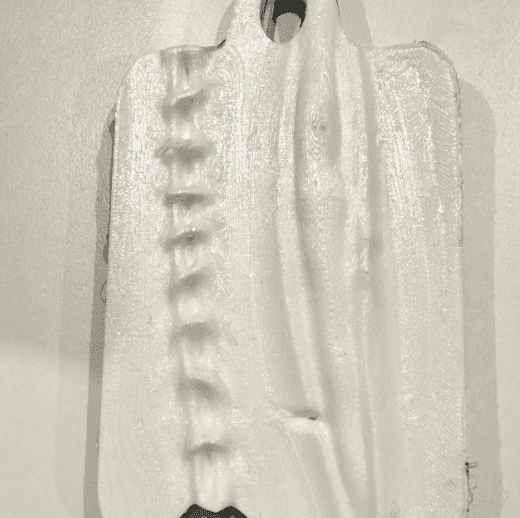
My work begins with the conception of the principal theme. After I have decided on my idea and made a drawing, I proceed to explore for ways to execute my work. I ultimately decided that I wanted to produce a biomimetic material design, so I used silicone to create a material that is similar in hue to skin and can highlight “scars”. This not only makes it visually more fascinating, but also better suits the fundamental theme of my work.
After I decided on the material, I proceeded with 3D modeling. I used ZBrush and TinderCAD to construct the models for the scar and the reverse film molds. After multiple revisions and rebuilding of my models. Following the creation of the mold, I procured silicone ingredients and many supplementary tooling components, subsequently conducting repeated film-pouring trials. The poured sample components were utilized to enhance my mold further. I finally decided on three main molds as the tools for this work: the scar mold, the interior inflated mold that requires secondary reverse film, and the sample mold.
At the beginning, I attempt to design a shshcihcidhscuihcdiuhduishcuidhc
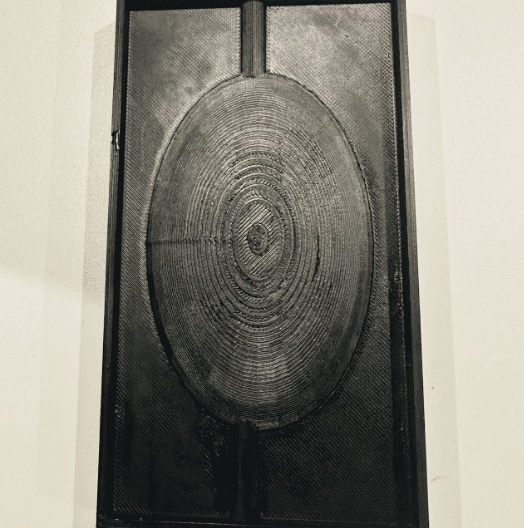
scar model
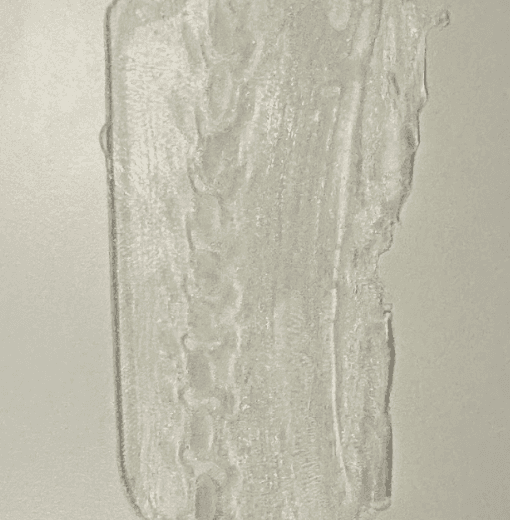
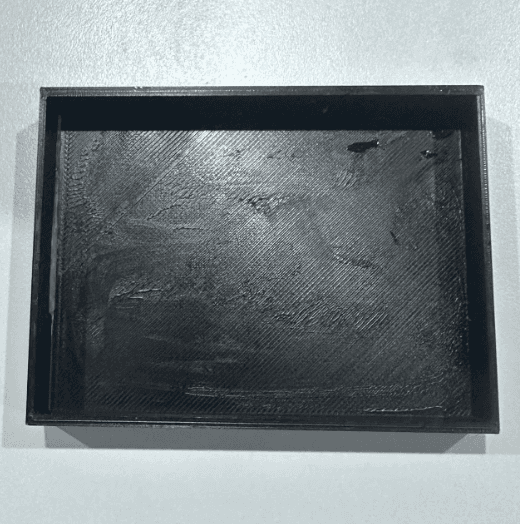
scar sample
model for internal inflation
test sample model
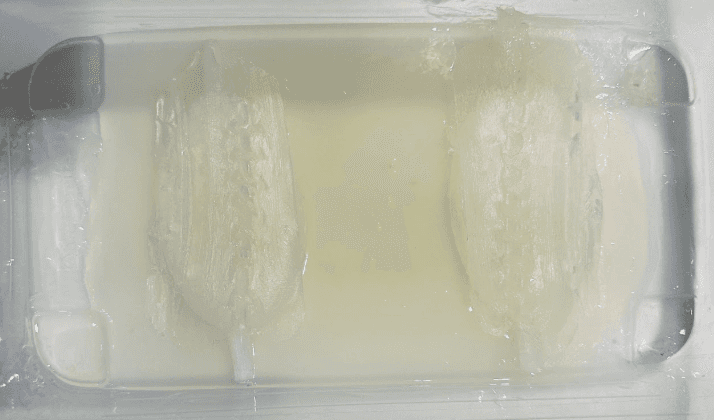
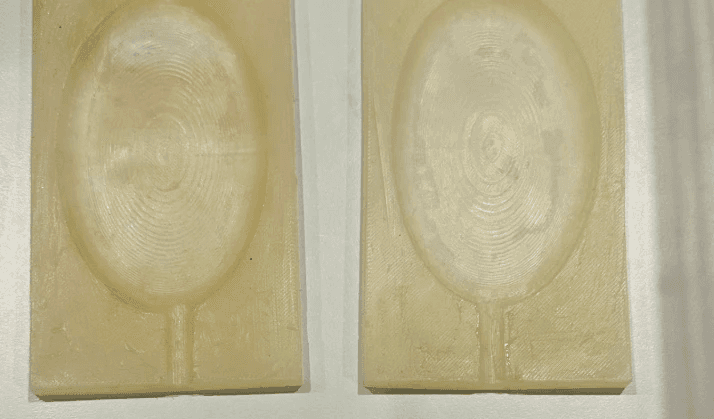
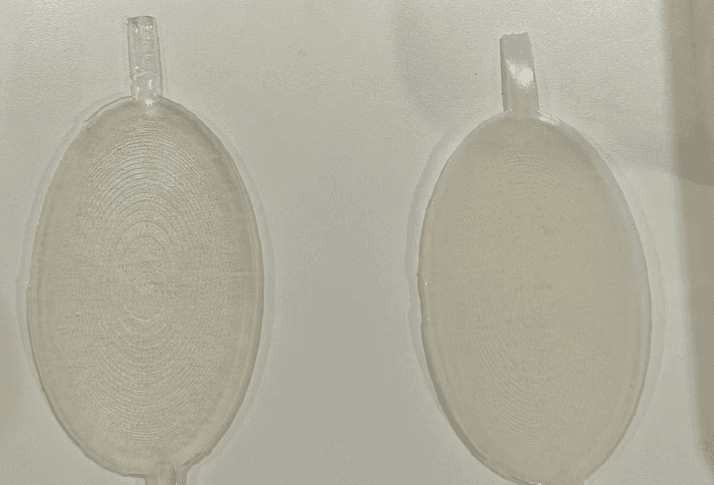
I commenced the process of pouring the film for each small material required for the project in distinct batches after identifying the primary mold. For instance, the scar and the silicone material required for the air intake, which must be molded separately. I first poured the silicone out of the 3D mold for the intake of air mold, and then I poured the material that can be molded twice into the silicone rubber mold. Afterward, I inserted the mold that can be molded twice into the mold case to complete the final project. This is employed to generate the ultimate product.
I commenced the process of pouring the film for each small material required for the project in distinct batches after identifying the primary mold. For instance, the scar and the silicone material required for the air intake, which must be molded separately. I first poured the silicone out of the 3D mold for the intake of air mold, and then I poured the material that can be molded twice into the silicone rubber mold.
Afterward, I inserted the mold that can be molded twice into the mold case to complete the final project. This is employed to generate the ultimate product.
Typical Application Circuit (The Air Pump and 5V Power Supply components were not found in the software, so the DC Motor and 9V components were used as substitutes to display the circuit diagram.)
Trouble Shooting
Final
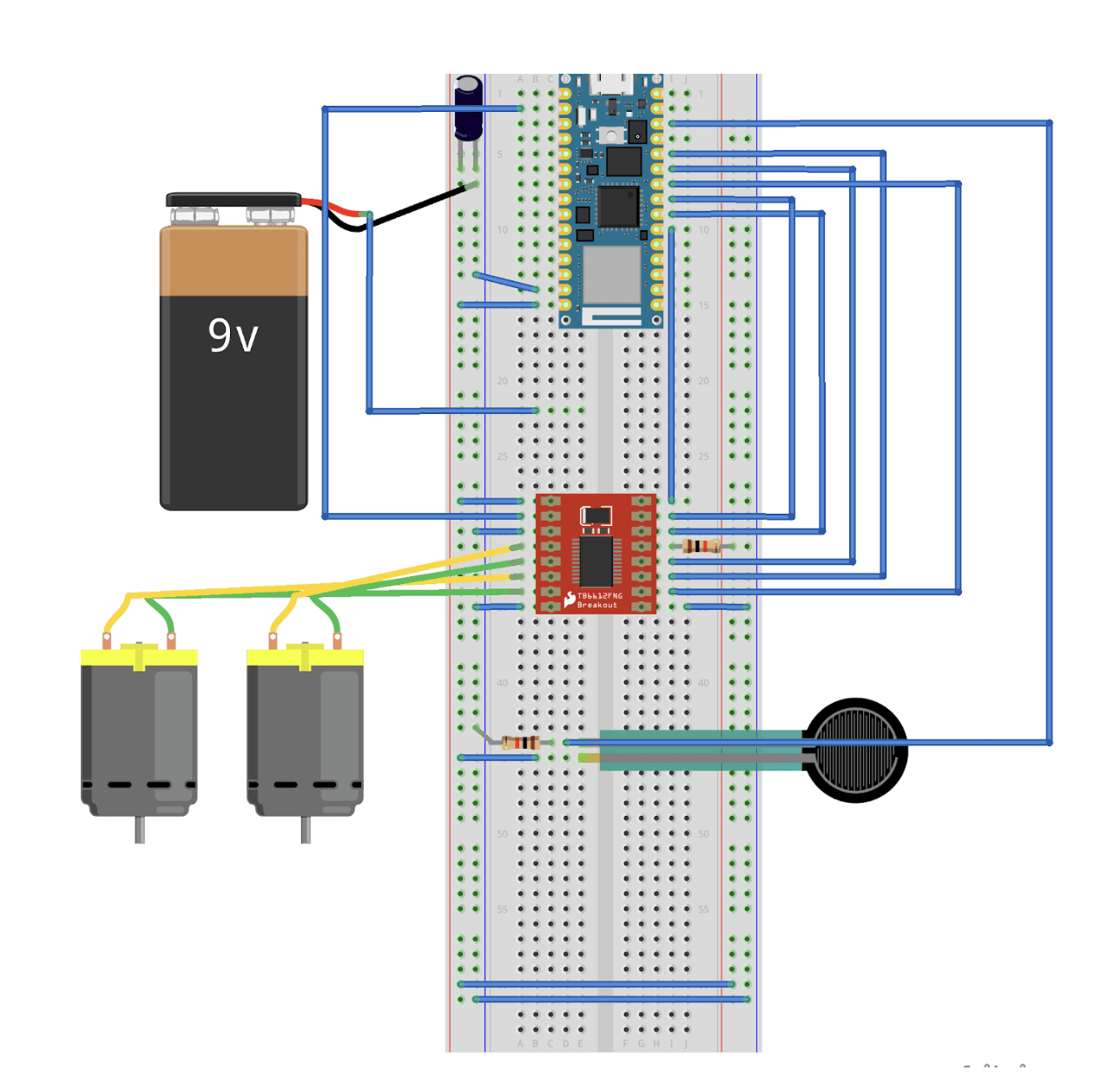
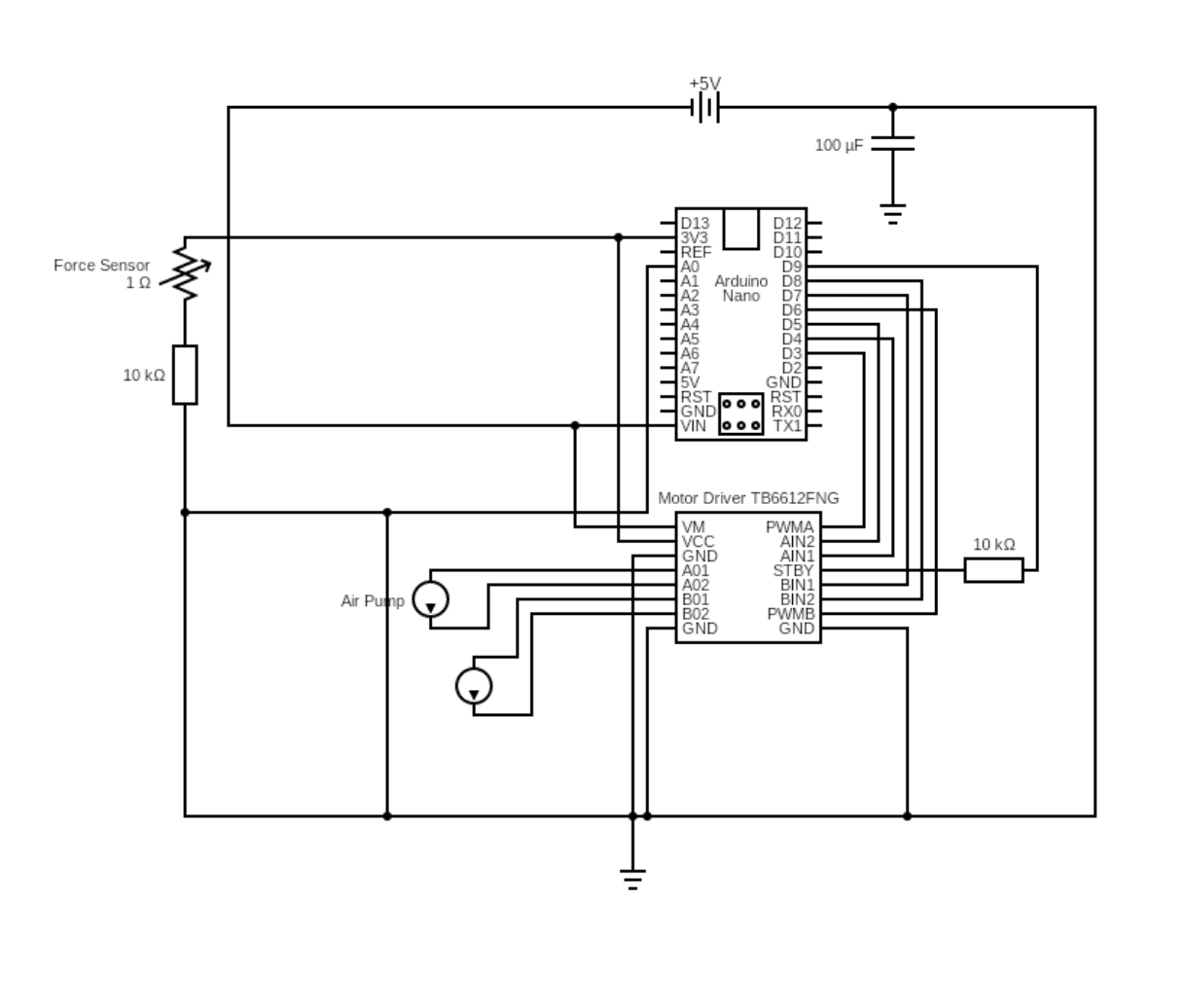
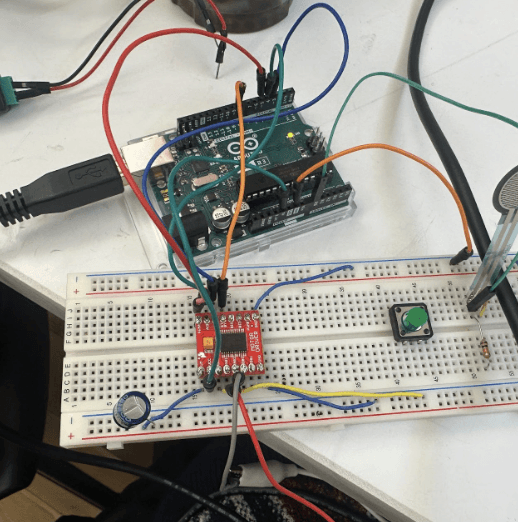
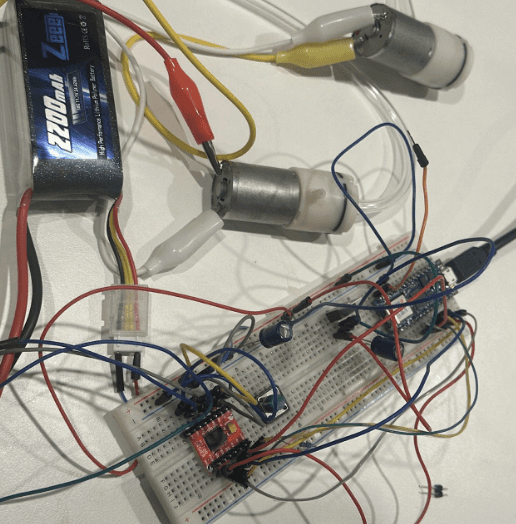
Connect Circuits
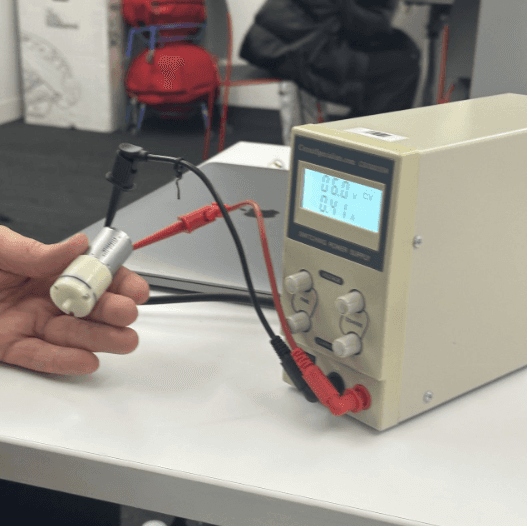
Initially power choose
In terms of the circuit diagram connection, the difficulties I encountered were as follows:
VM? VCC?
I misidentified the VM and VCC connections of the motor driver with the Arduino Vin interface.
Be careful when you soldering
The motor driver I manually soldered had two connections that became loose during previous handling, resulting in weak connections.
Watch out! STBY!
The motor driver I manually soldered had two connections that became loose during previous handling, resulting in weak connections.
Do not burn the breadboard!
The circuit connections were compromised as a consequence of the breadboard's combustion during my previous testing