Feb 6, 2024
Building a Navigation Component with Variables
Navigation is key within any digital interface. Smart Components enable us to create custom interactive navigation components that work perfectly with the rest of your prototype.In this guide, we will cover the concepts of nesting components, adding events to elements in a component using Event Variables, and passing these through your components. One of the main benefits of using nested components is that it provides full control over its states, such as unique hover states of elements within another component.
Starting at the atomic level
Framer allows you to create fully interactive and animated components, and even allows you to nest components within other components. We’re building a navigation bar component for a website that will contain two different kinds of nested components, with their own unique interactions. Our project will contain a Navigation bar that contains various nested components, namely five Nav items and one Shopping cart component. The design of our nested components, the nav list item and the shopping cart, will impact how we design our navigation bar. For this reason, an optimal workflow includes starting with the 'deepest' nested component and building up from there.
Nesting components
Once we have our two components ready, we can start creating the component in which we will nest these. Draw your navigation bar, select it on the canvas and click the Component tool in the Toolbar. To nest a different component in our new component, just drag any other component to the Component Canvas and place it within your designed navigation bar.
Triggering interactions from the navigation bar
Back on the main canvas, we’d like to be able to tap 'Clothing' and navigate to an entire new Screen. If you’d connect the component using the Prototyping Connector to a new screen, we could set up an Interaction. However, this would be triggered if we tap anywhere within our component. This isn’t what we want to do, as we want to trigger this transition only from a specific element. This is where Event Variables come in, which are special types of Variables not attached to properties (like opacity or fill) but instead to events.
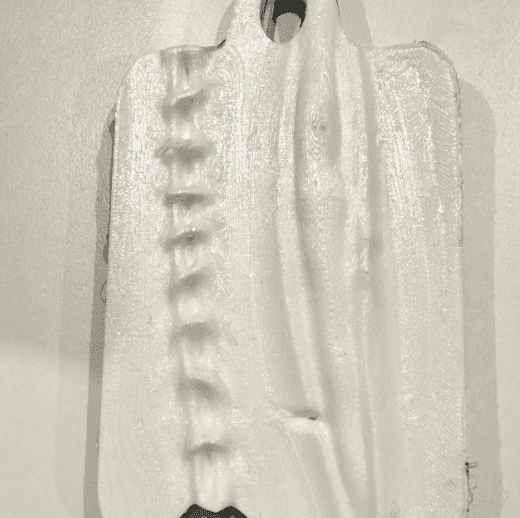
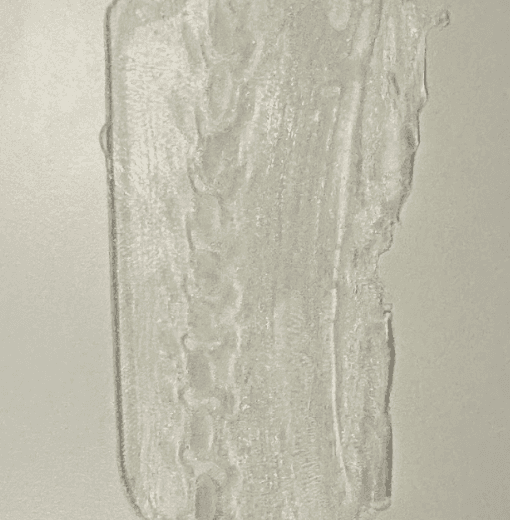
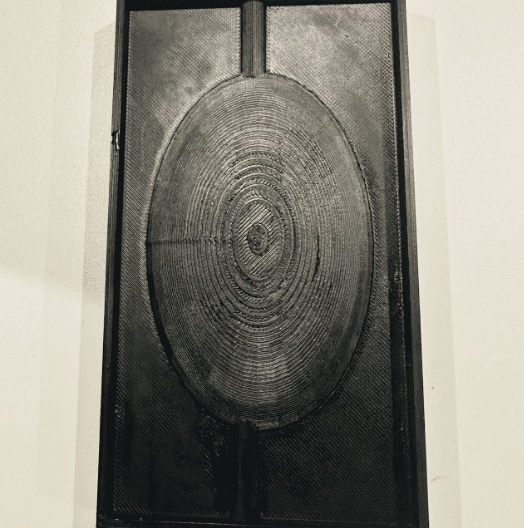
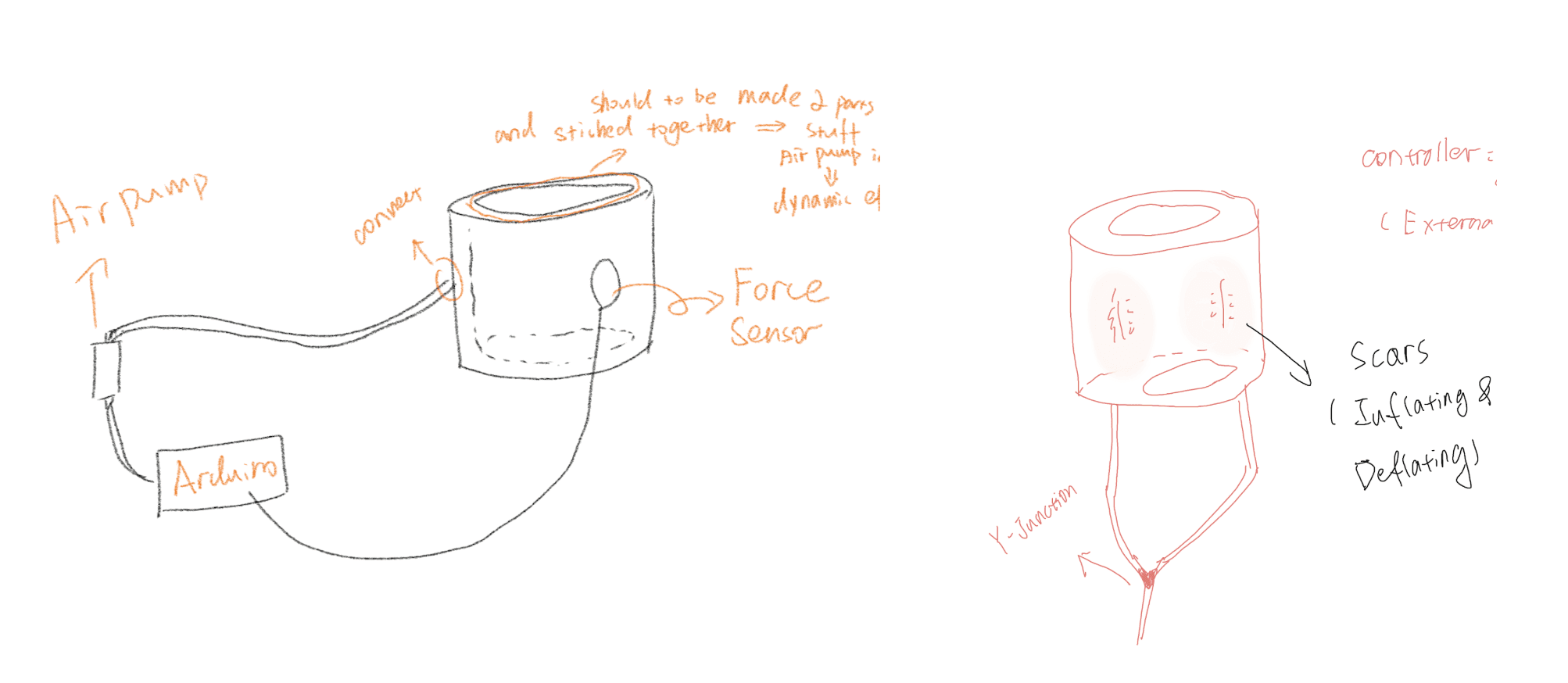
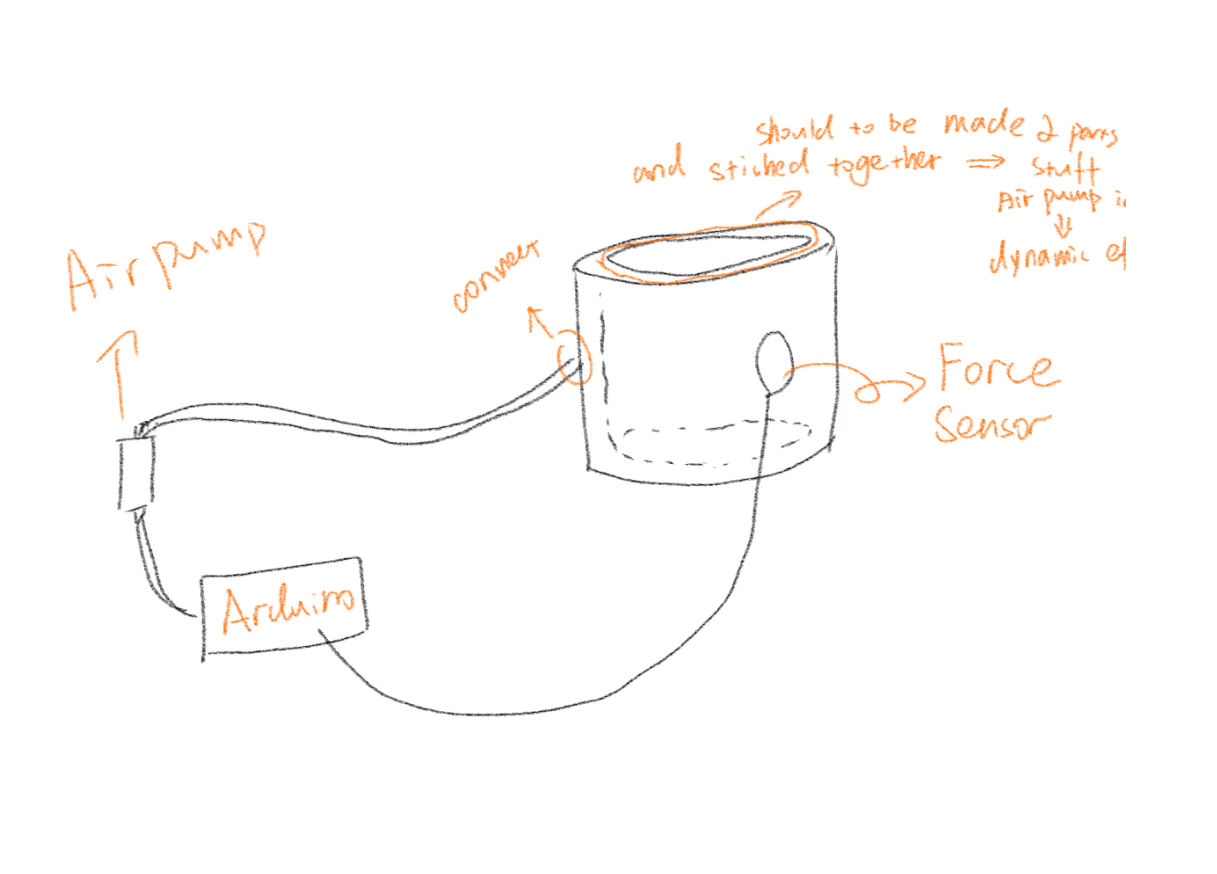
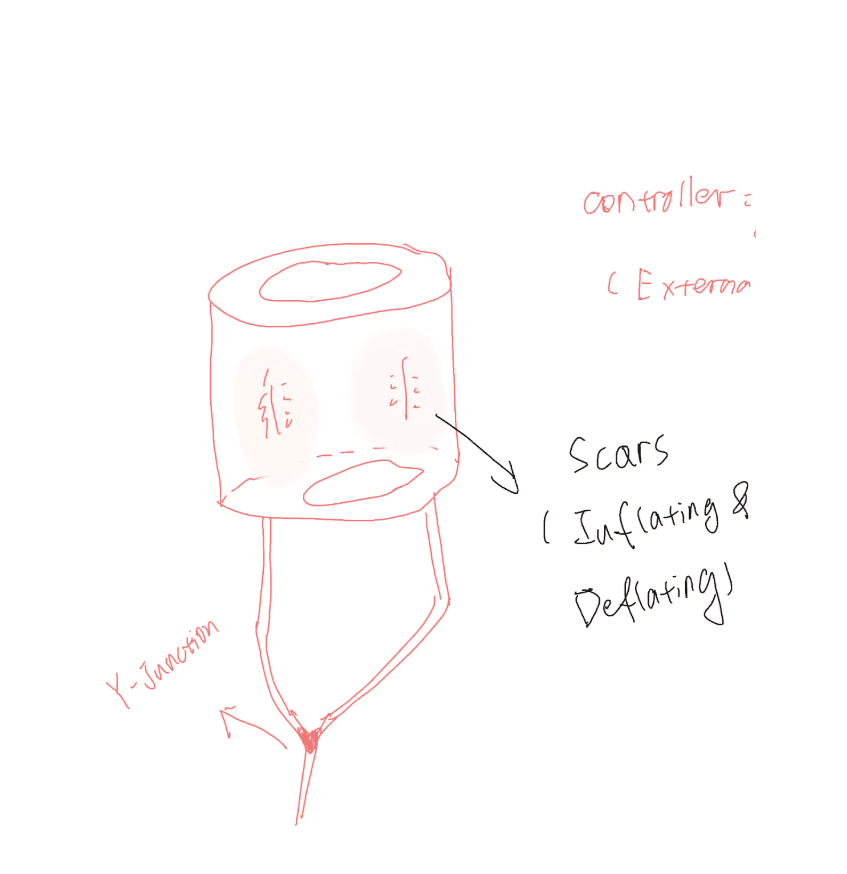
Initial & Final Sketches
Finished Product
How to operate the air pump and achieve the effect of inflation?
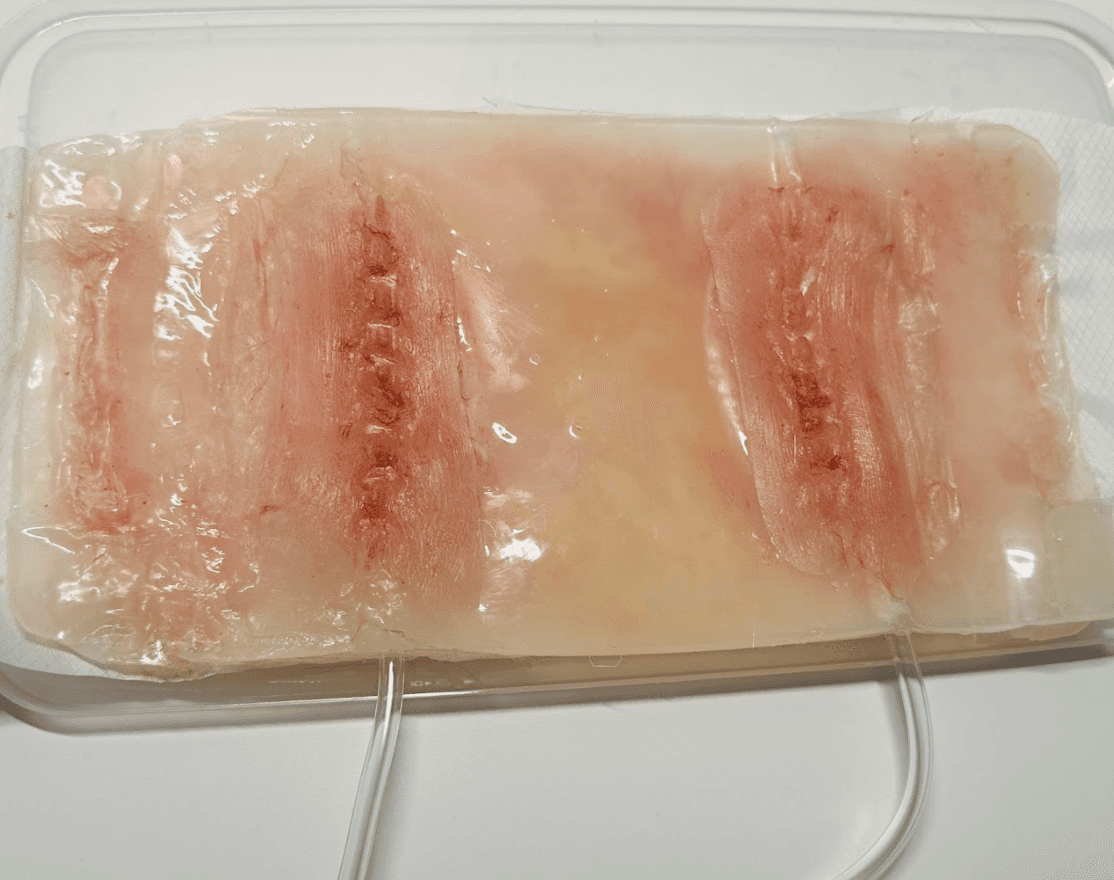
After successfully laminating the final product, I began dyeing (I tried adding the dyeing material when mixing the solution but was unable to achieve the effect I wanted, so I finally chose to paint the finished product with a brush).
Process of Creating Project Model
My work begins with the conception of the principal theme. After I have decided on my idea and made a drawing, I proceed to explore for ways to execute my work. I ultimately decided that I wanted to produce a biomimetic material design, so I used silicone to create a material that is similar in hue to skin and can highlight “scars”. This not only makes it visually more fascinating, but also better suits the fundamental theme of my work.
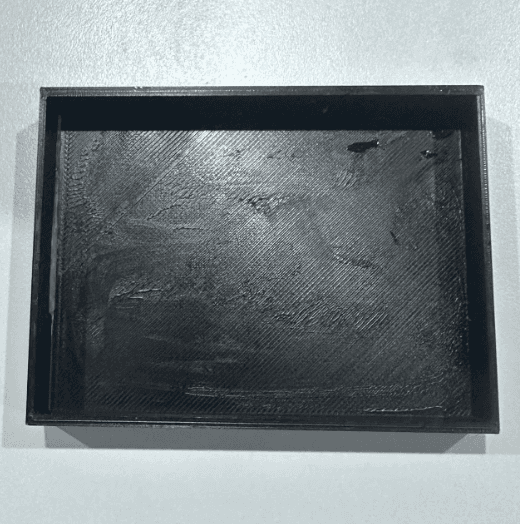
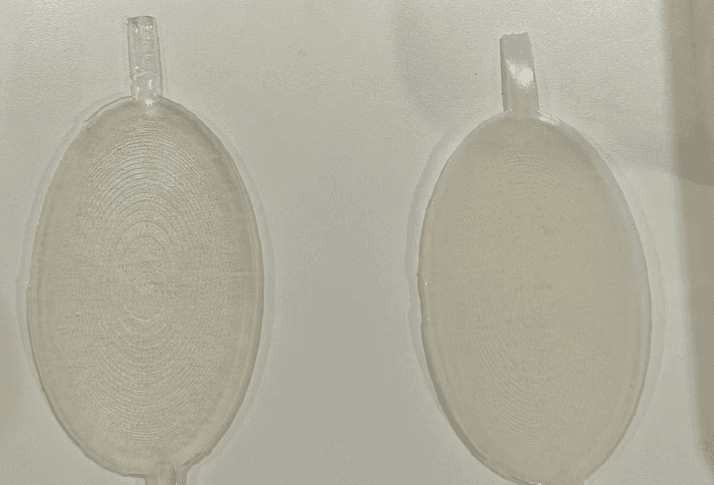
After I decided on the material, I proceeded with 3D modeling. I used ZBrush and TinderCAD to construct the models for the scar and the reverse film molds. After multiple revisions and rebuilding of my models. Following the creation of the mold, I procured silicone ingredients and many supplementary tooling components, subsequently conducting repeated film-pouring trials. The poured sample components were utilized to enhance my mold further. I finally decided on three main molds as the tools for this work: the scar mold, the interior inflated mold that requires secondary reverse film, and the sample mold.
At the beginning, I attempt to design a shshcihcidhscuihcdiuhduishcuidhc
scar model
scar sample
model for internal inflation
test sample model
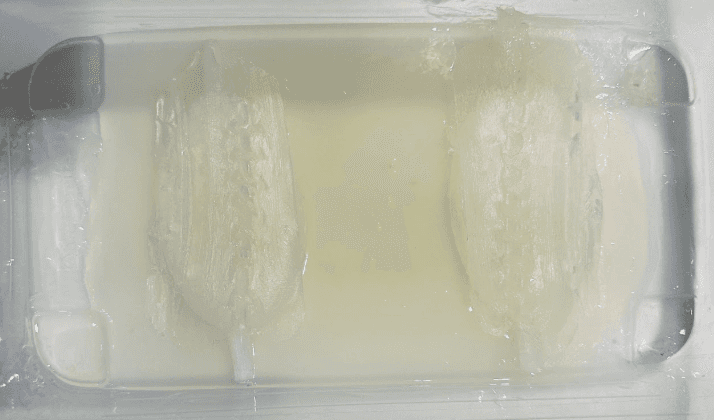
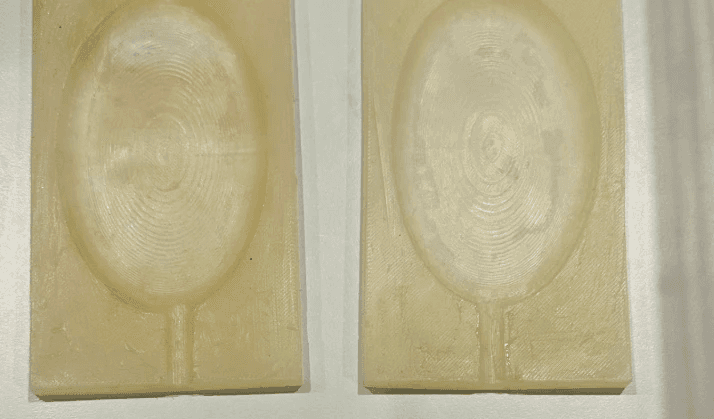
I commenced the process of pouring the film for each small material required for the project in distinct batches after identifying the primary mold. For instance, the scar and the silicone material required for the air intake, which must be molded separately. I first poured the silicone out of the 3D mold for the intake of air mold, and then I poured the material that can be molded twice into the silicone rubber mold. Afterward, I inserted the mold that can be molded twice into the mold case to complete the final project. This is employed to generate the ultimate product.
I commenced the process of pouring the film for each small material required for the project in distinct batches after identifying the primary mold. For instance, the scar and the silicone material required for the air intake, which must be molded separately. I first poured the silicone out of the 3D mold for the intake of air mold, and then I poured the material that can be molded twice into the silicone rubber mold.
Afterward, I inserted the mold that can be molded twice into the mold case to complete the final project. This is employed to generate the ultimate product.
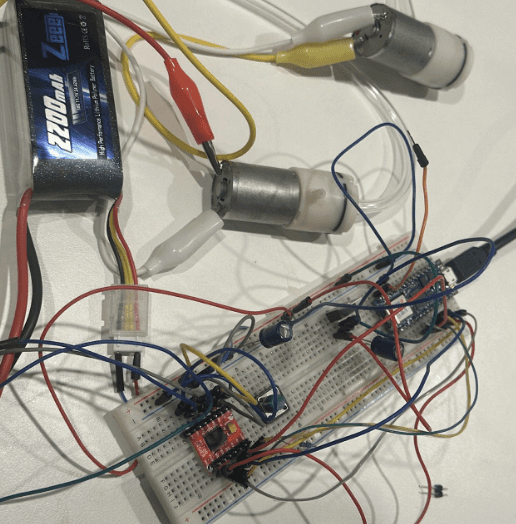
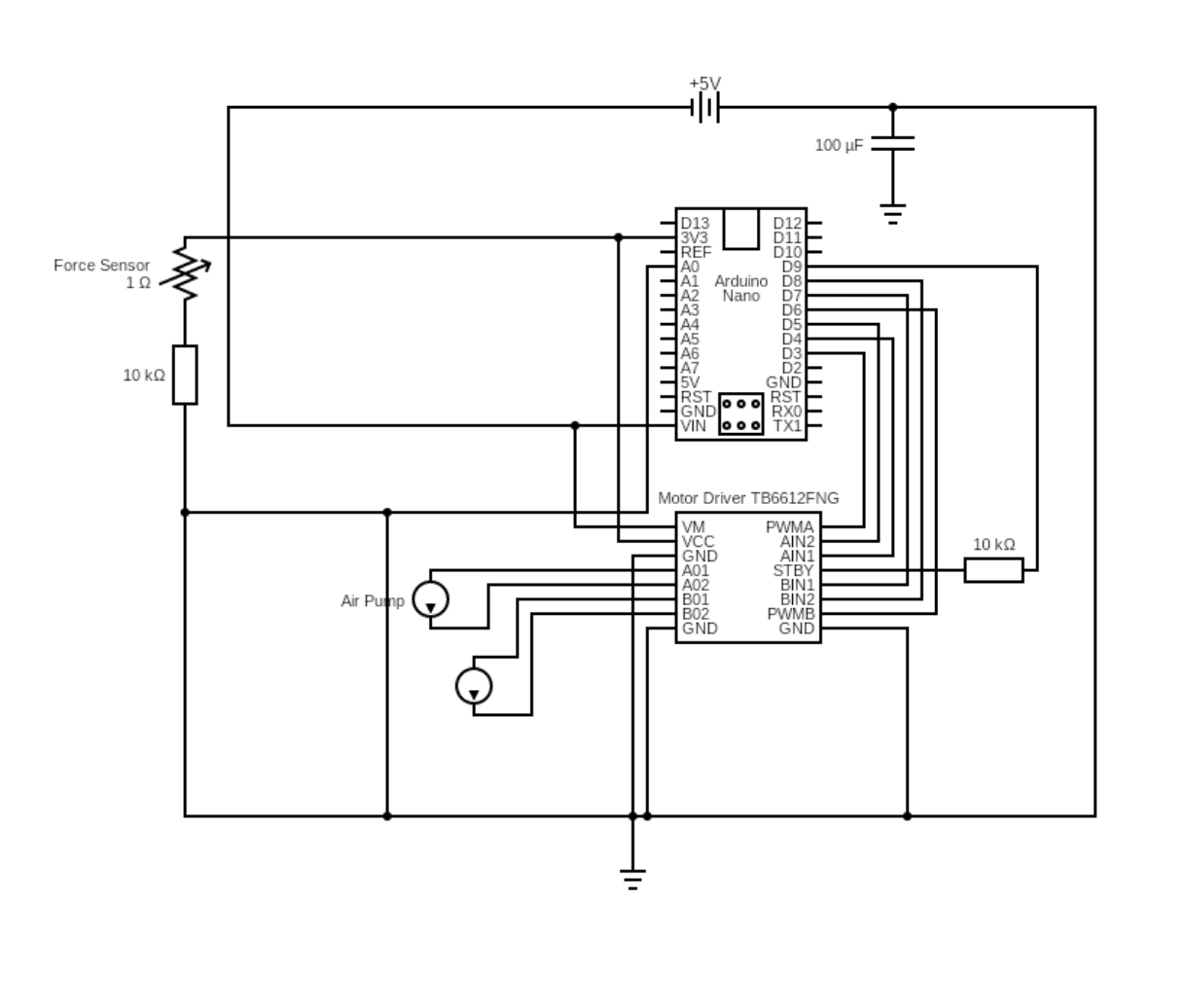
Typical Application Circuit (The Air Pump and 5V Power Supply components were not found in the software, so the DC Motor and 9V components were used as substitutes to display the circuit diagram.)
Trouble Shooting
Final
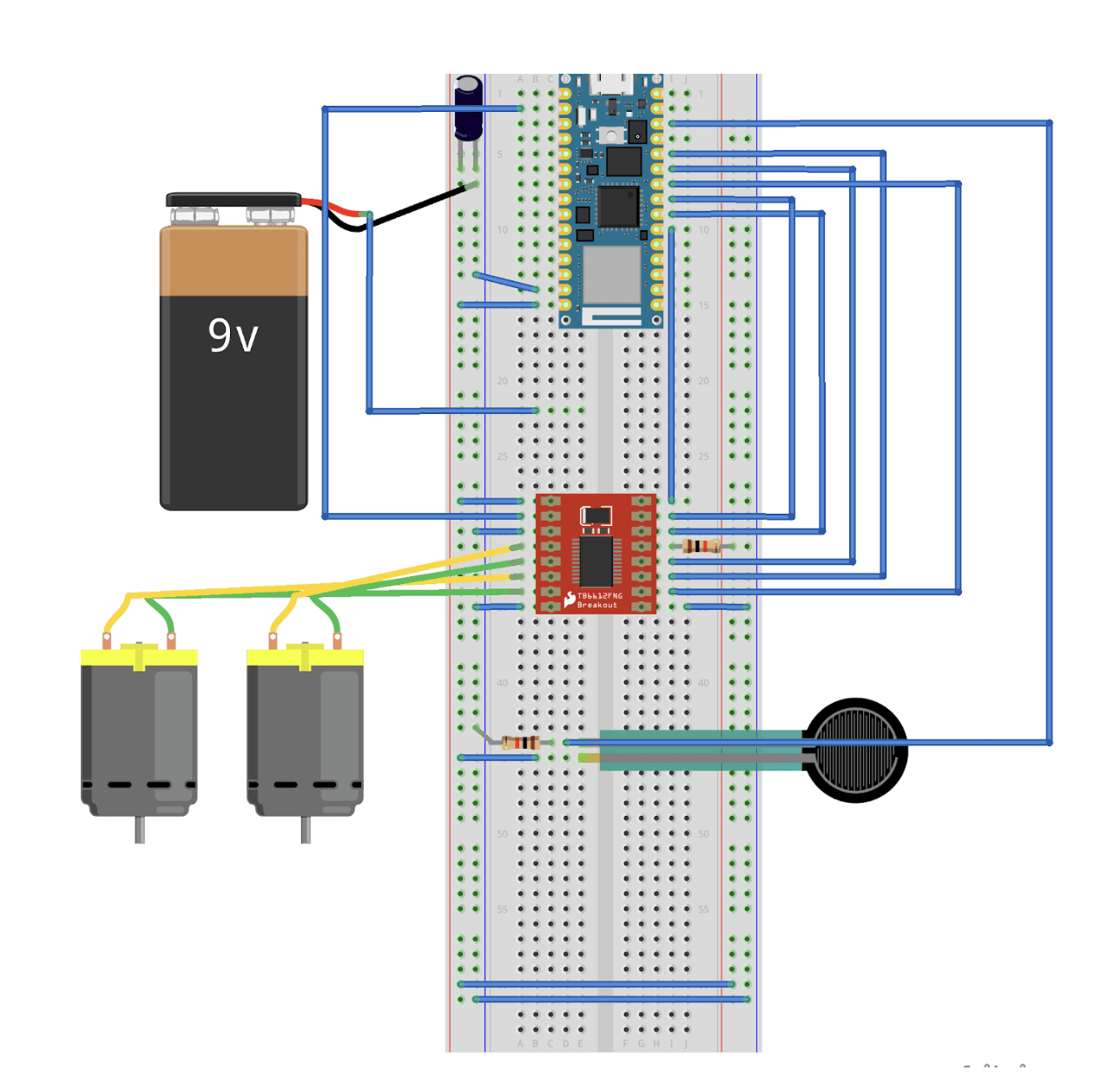
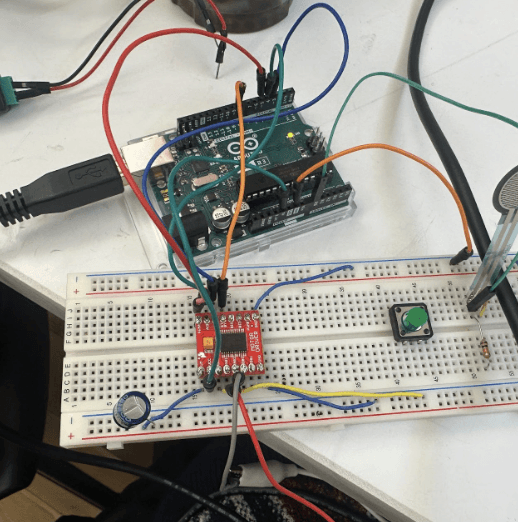
Connect Circuits
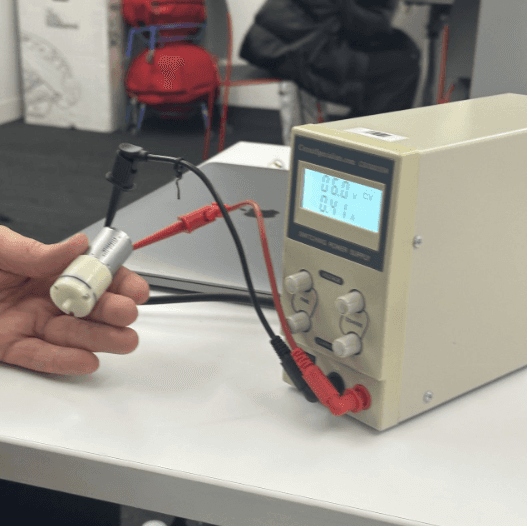
Initially power choose
In terms of the circuit diagram connection, the difficulties I encountered were as follows:
VM? VCC?
I misidentified the VM and VCC connections of the motor driver with the Arduino Vin interface.
Be careful when you soldering
The motor driver I manually soldered had two connections that became loose during previous handling, resulting in weak connections.
Watch out! STBY!
The motor driver I manually soldered had two connections that became loose during previous handling, resulting in weak connections.
Do not burn the breadboard!
The circuit connections were compromised as a consequence of the breadboard's combustion during my previous testing